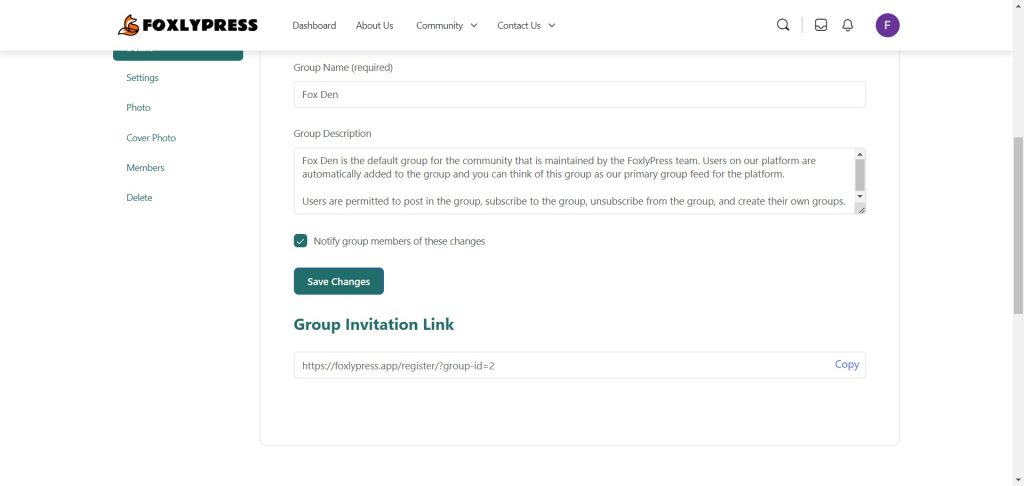
To enable unique group links for BuddyBoss you need to install our extension and activate your license key. Once your license has been verified, you will then be able to toggle the feature on and off in the Unique Group Links Settings.
Let’s take a look at the processes step by step.
Step 1: Install the plugin #
- Navigate to your customer dashboard and click on the download link.
- Download the plugin as a zip file.
- Return to your website.
- Click on Plugins.
- Click on Add New.
- Click on Upload Plugins.
- Upload the zip file.
- Activate the plugin.
- Refresh your page.
- A menu item will now appear called BuddyBoss Groups Invite Links

Step 2: Activate Your License #
- Hover your mouse over the BuddyBoss Groups Invite Links menu item
- Click Manage License
- Paste your License Key
- Click Activate
Step 3: Enable the Unique Group Links #
- After activating your license, move your mouse over the BuddyBoss Groups Invite Links menu item.
- Click BuddyBoss Groups Invite Links menu item.
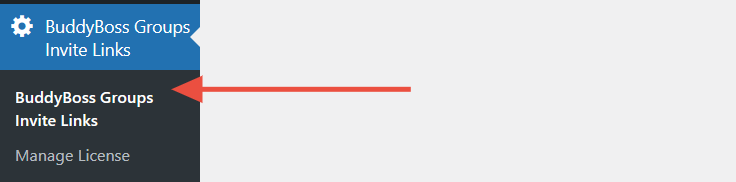
- Enable the unique link function.
- Click save changes.

Step 5: Confirm Unique Group Links Are Displayed #
- Now navigate to a group on your website.
- Open the group’s manage tab.
- You should see a unique link that can be copied.